Permission Numbers, commonly referred to as a PIN, are given out by an instructor or a department coordinator. The permission number can be used when performing an enrollment action through your Student Center. Permission Numbers can override a closed class and department/instructor consent. Permission Numbers do not override time conflicts or the maximum credit hour limit.
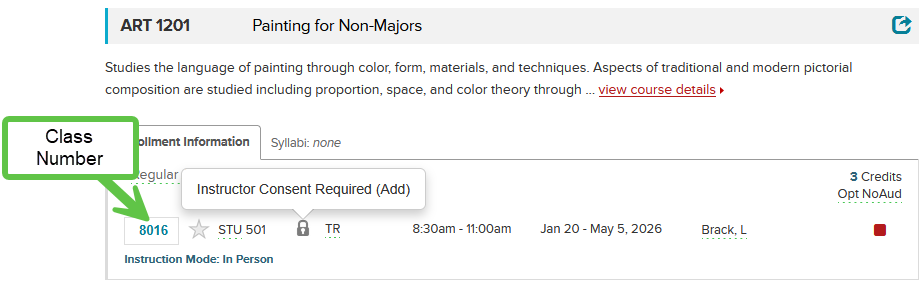
For our example, we are requesting enrollment in ART 1201 (Class Number: 8016). Per the roster, the class requires instructor permission to enroll, indicated by hovering over the padlock.
To Add a Class with a Permission Number
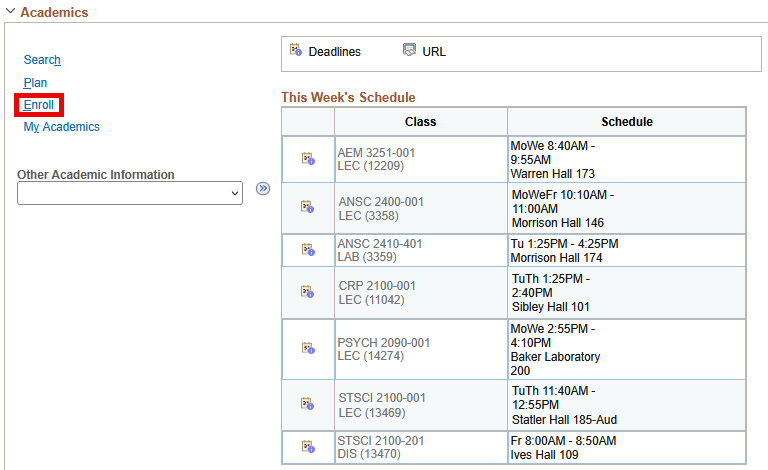
After logging in to your Student Center, click Enroll on your Student Center Homepage.
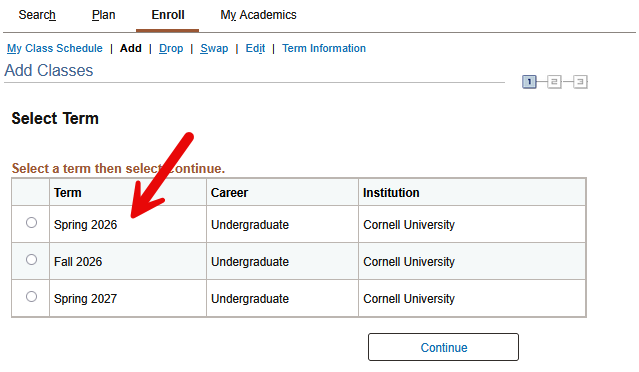
Select Add and then select a Term and click Continue.
Step 1 - Select Classes to Add
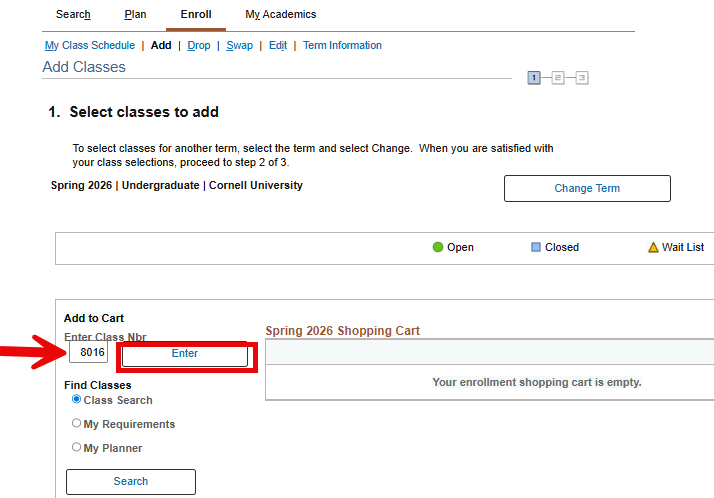
Enter the Class Number in the Enter Class Nbr field and then select Enter.
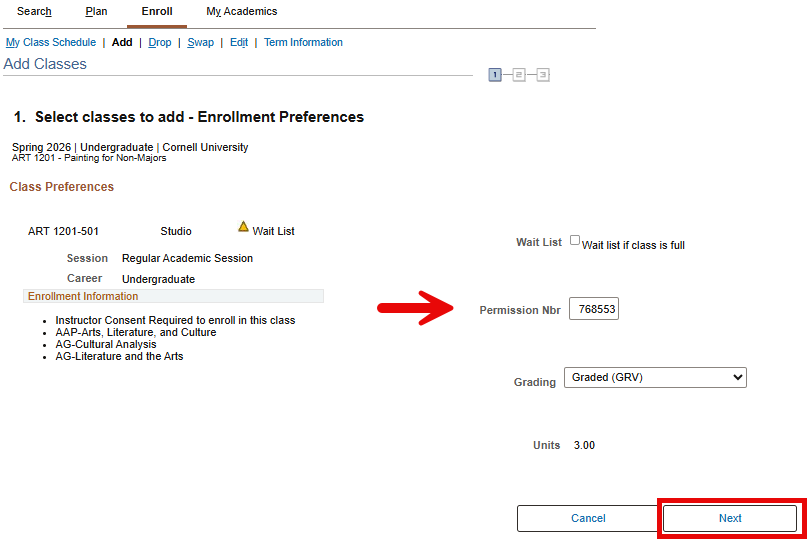
You will enter the Permission Number (PIN) that you had received from either the department coordinator or instructor in the Permission Nbr box and click Next.
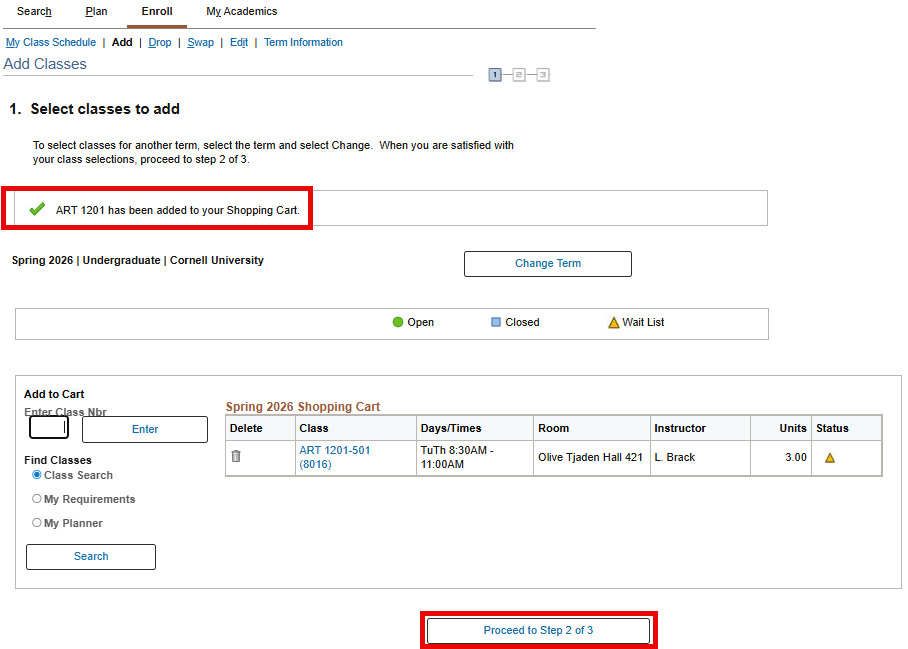
Once you select Next, the class will now appear in your Shopping cart. Select Proceed to Step 2 of 3 to continue with our enrollment request.
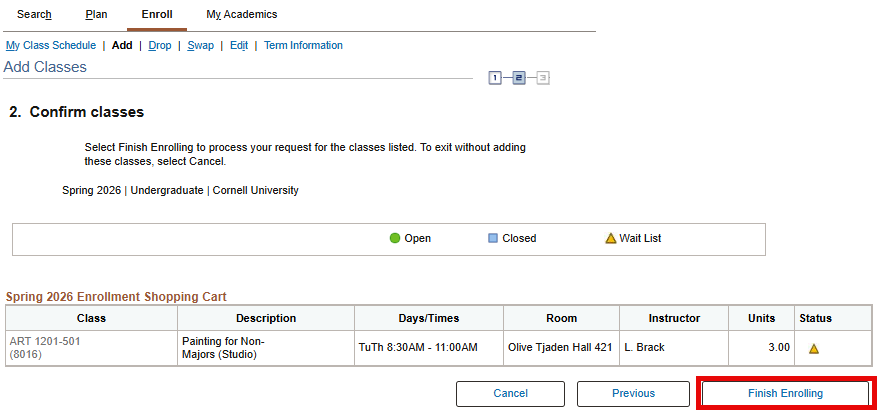
Step 2 - Confirm Classes
Select Finish Enrolling.
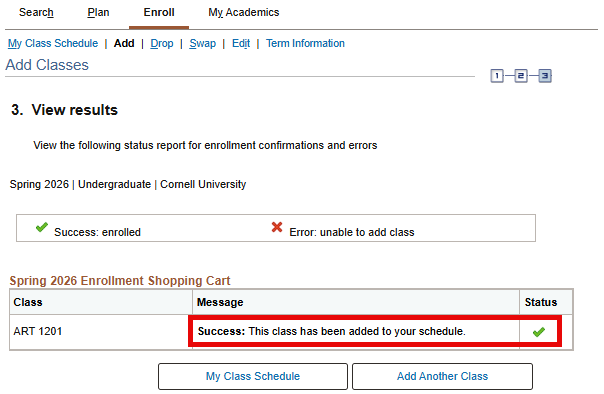
Step 3 - View Results
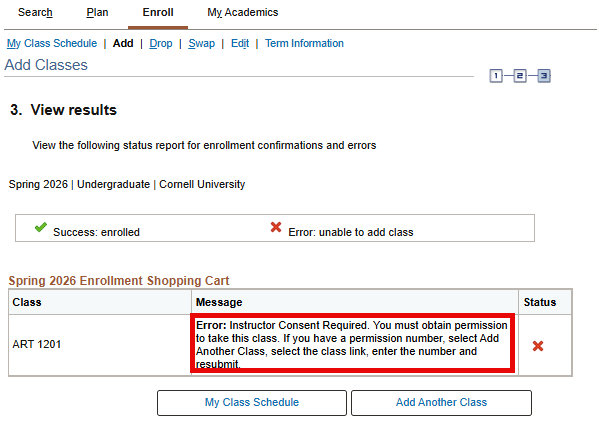
If you are enrolling in the correct section for which the Permission Number has been assigned, you will receive a success message and a green check mark in the status field.
If you are attempting to enroll in a section for which the permission number was not created for or the permission number was not created correctly, you will an error message and a red X in the status field. If you do receive the below error, please reach out to the instructor or department coordinator who provided you with the permission number.